Works where you work.
Any screen with a browser.
NextOS is a web app, not a native one, so it runs wherever a modern browser does: your laptop, your phone, a tablet, a TV in the living room, even a fridge or smart-display screen. Sign in and your files and tables come with you; stay signed out and everything stays on the one device in front of you.
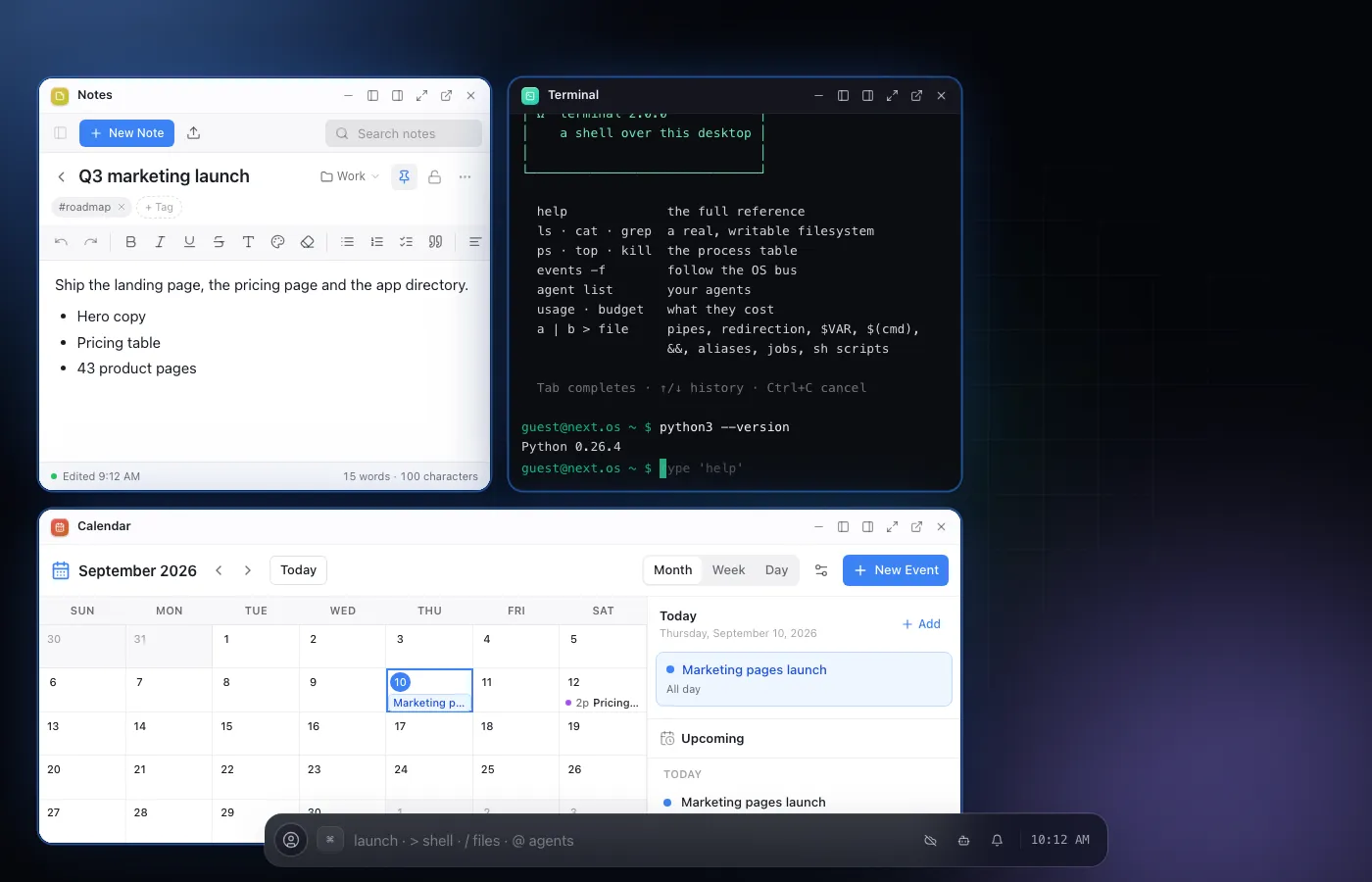
Laptop
Windows, the strip, keyboard-first.
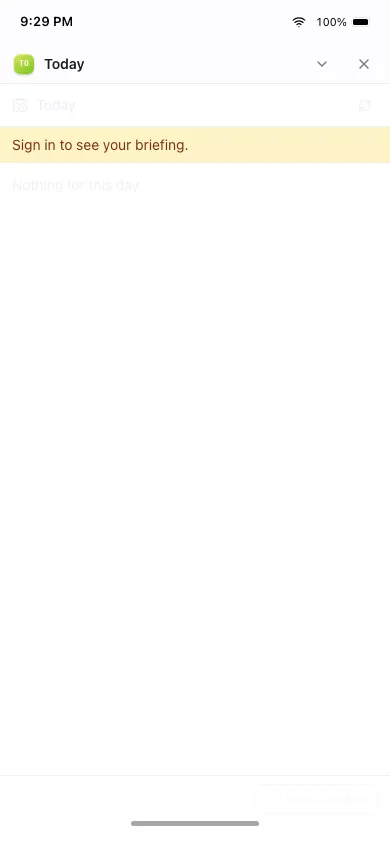
Phone
One app at a time. Add it to your home screen.
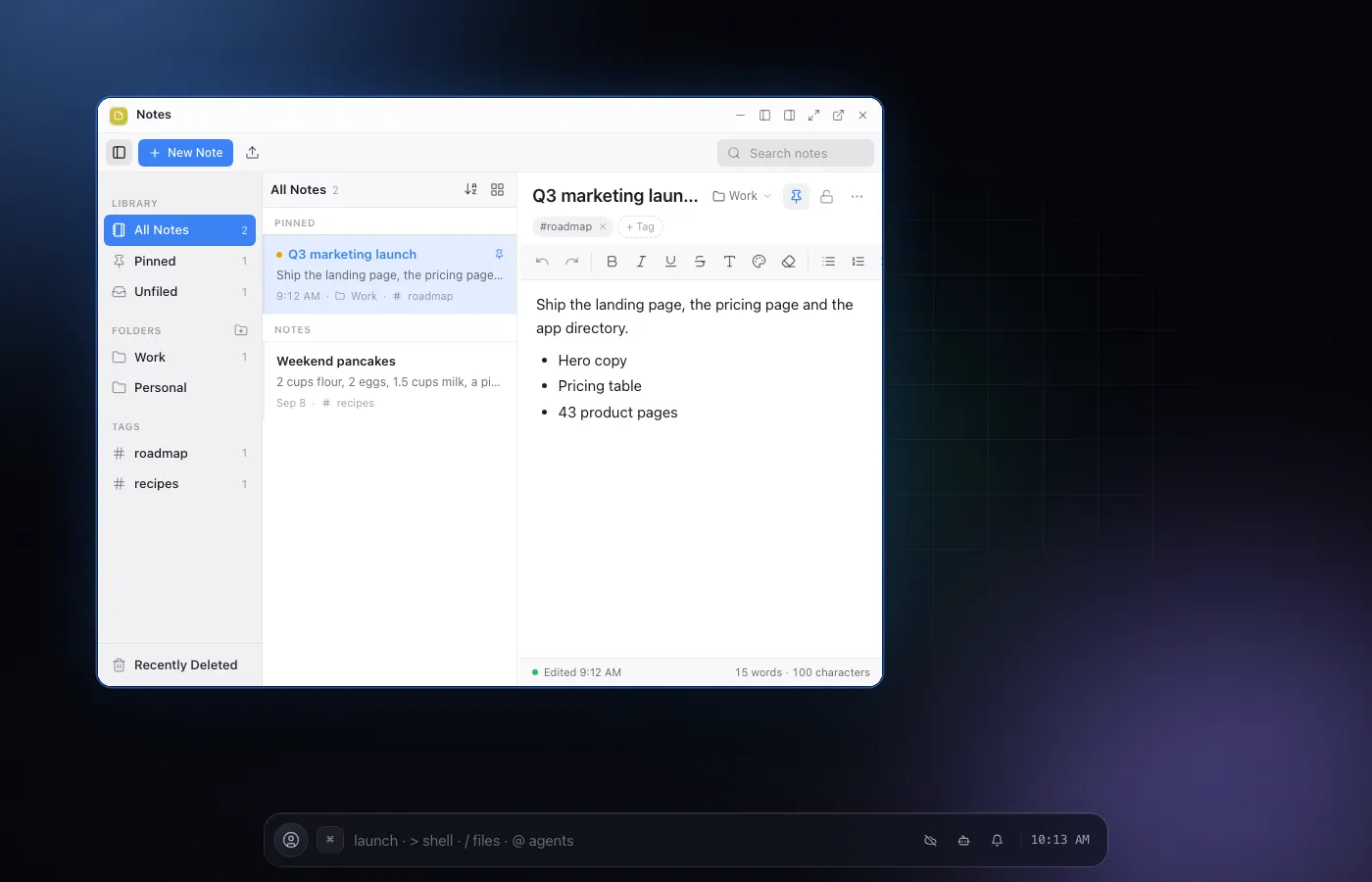
Tablet
The same desktop shell, run with a finger.
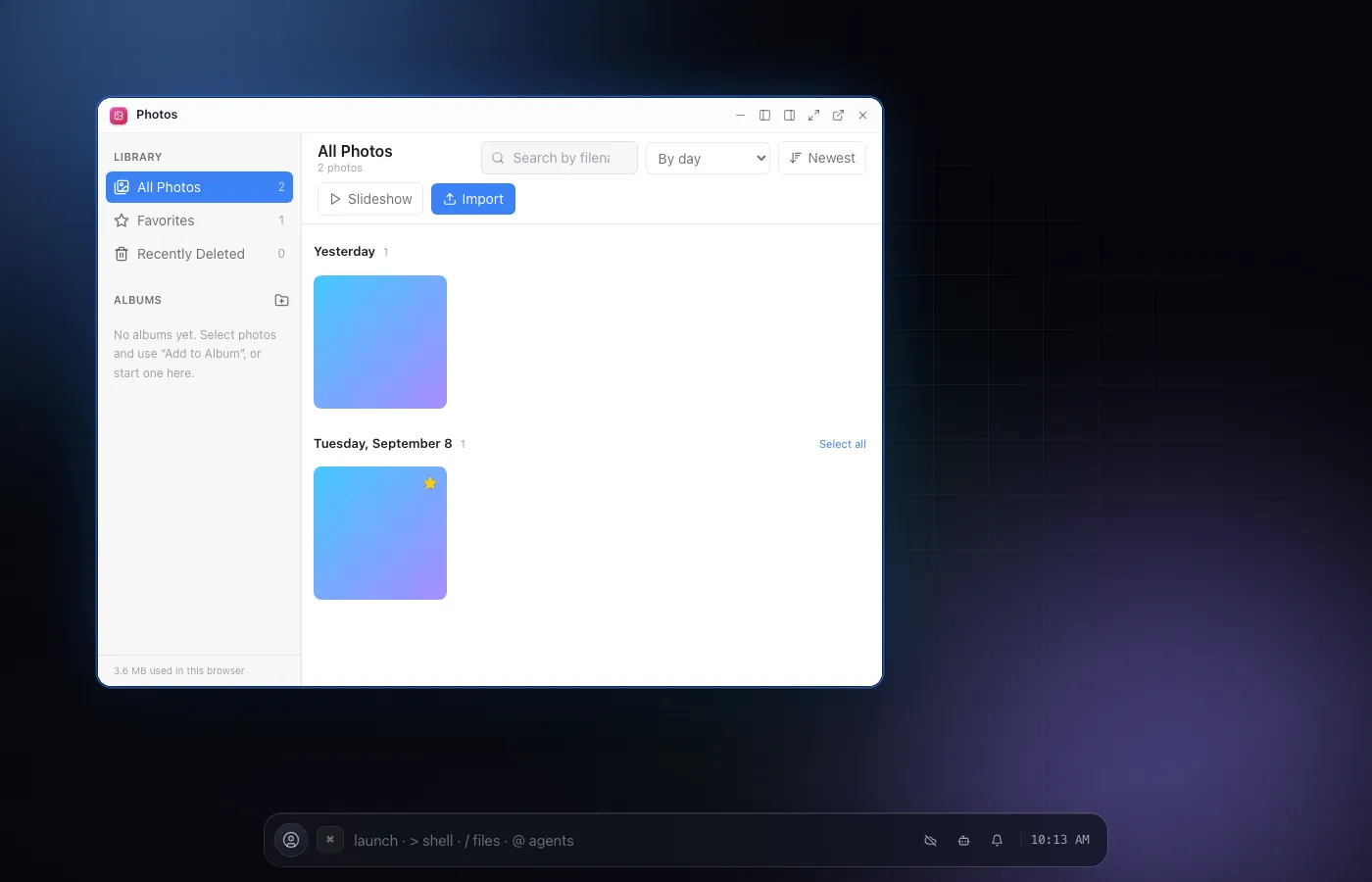
TV
Approve the day’s decisions from the couch.
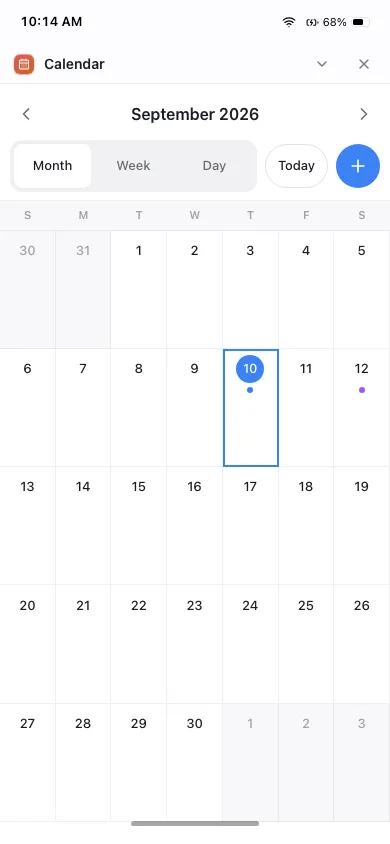
Fridge / smart display
Check the schedule while cooking.
Nothing to install
It’s a web app. Add it to your home screen (or install it from a desktop browser’s address bar) and it opens full-screen, like an app — no store, no download.
Same OS, same files
Signed in, your files and tables follow you to the next device through the same sync as everything else in your account; turn on syncing for a given setting and it follows too.
Works offline
The OS itself keeps working with no connection — your files are already on the device you’re using. It syncs back up the moment you’re online again.
01Shell by shell
Same OS,
a different shell for the screen you're on.
Laptop and desktop
The Field shell: a launch strip along the bottom, real overlapping windows, and three keystrokes that carry the rest — / finds a file, > runs a terminal line, @ hands an agent a task. Built for a keyboard and a big screen first.
Phone
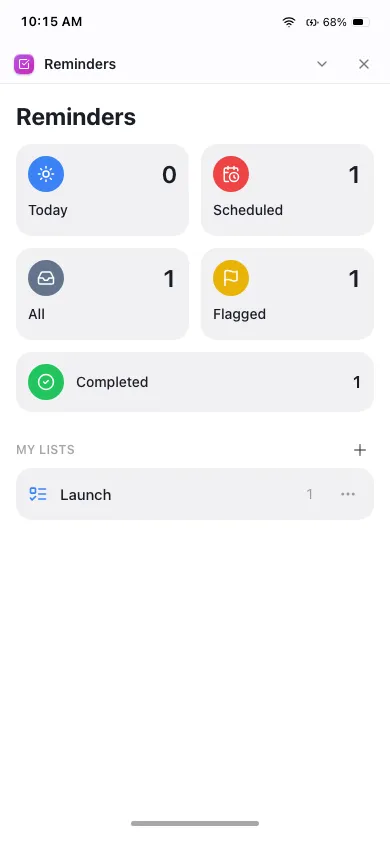
A launcher-first mobile shell, not a shrunken desktop: one app at a time, real phone gestures (an app zooms out of the icon you tapped, a home-bar swipe takes you back), and the strip opens as a sheet instead of a bar. Add it to your home screen once and it opens full-screen from there on.
Tablet
The same desktop shell as your laptop — windows, the strip, everything — run with a finger instead of a pointer. Nothing is left out for the sake of a touch-first mode; it’s the full OS on a bigger screen than your phone’s.
TV and big screens
To be clear about what this is: it’s the TV’s own browser (or a cast from a laptop or phone), not a native TV app. From a few feet away, larger type and a simple app — photos, music, a dashboard, the day’s pending approvals — read fine from the couch.
Kitchen and other displays
A fridge door or any other smart display with a browser can open NextOS the same way a TV does. Something small and glanceable — Today, Calendar, Reminders — is what actually earns a spot there, checked while your hands are busy with something else.
02How to install
Add it once,
open it like an app from then on.
None of these go through an app store — they just tell your browser to keep a shortcut and open the page full-screen.
iOS · Safari
- Open nextos in Safari.
- Tap the Share icon.
- Choose “Add to Home Screen”.
Android · Chrome
- Open nextos in Chrome.
- Open the menu (⋮).
- Tap “Install app”.
Desktop · Chrome or Edge
- Open nextos in the browser.
- Look for the install icon in the address bar.
- Click it, then confirm.
03Questions
Asked often,
answered plainly.
Do I need to install an app from a store?
No. NextOS is a web app - open it in a browser and it runs. Add it to your phone or desktop home screen and it opens full-screen, like an installed app, but there is never an app-store listing or a download to approve.
If I use it on my phone and then my laptop, do I lose anything?
Not if you’re signed in - your files and tables move between devices through the same sync every other file in your account uses. Signed out, everything stays local to the one browser you’re using, on purpose, so nothing leaves that device.
Does it really work on a TV or a fridge screen?
If that screen has a browser (a smart TV’s built-in browser, a cast device, a smart display), you can open NextOS on it the same as any other site. It’s the same OS, not a stripped-down TV mode - large type and a simple app like Today or Calendar are what actually reads well from a few feet away.
What happens if I lose my connection partway through?
Your filesystem already lives on the device you’re using, so most of what you’re doing keeps working. The app shell itself is cached so a direct reload still opens the OS with no network at all; anything waiting to sync to another device catches up once you’re back online.